VS Code Tunnel in a Rootless Podman Container: A Complete Setup Guide
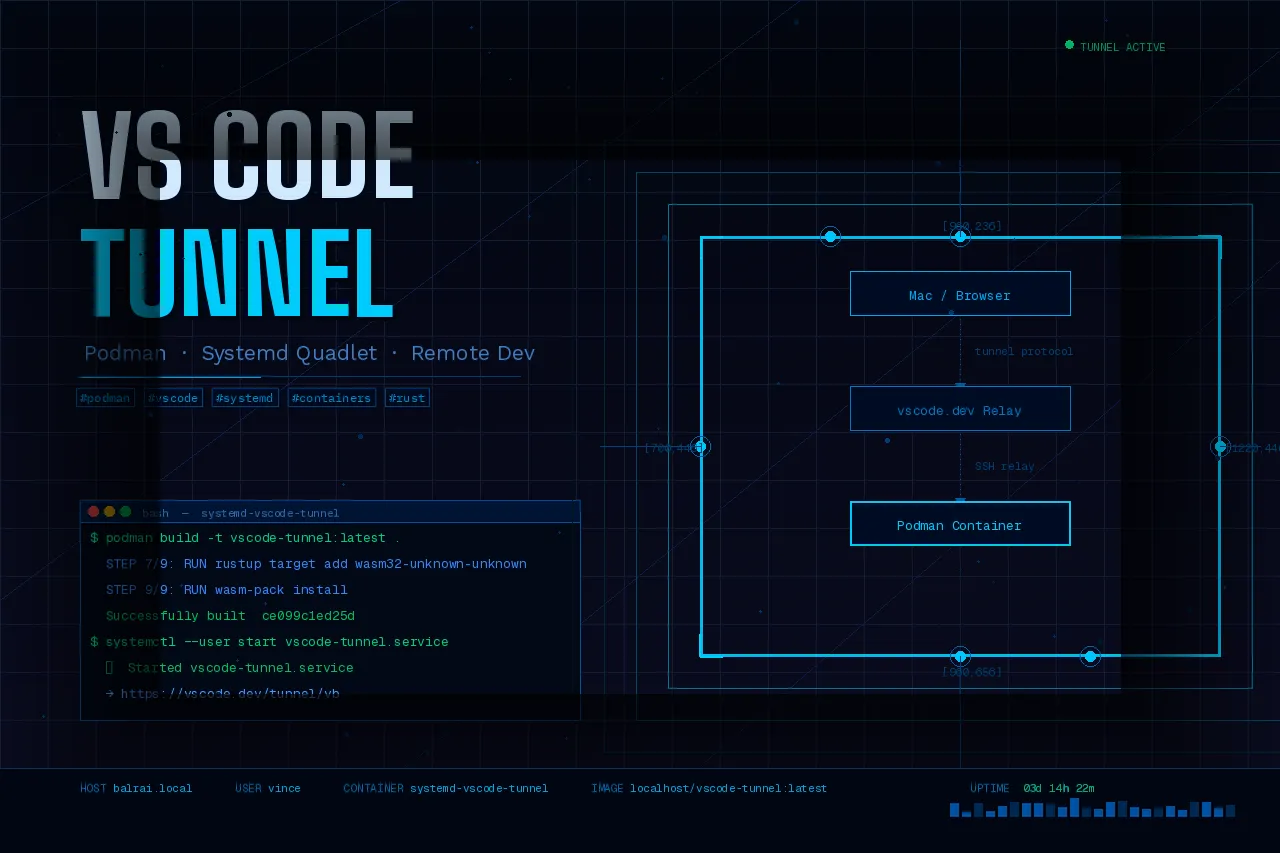 AI generated image.
Remote Dev Nirvana with Podman, Quadlet, and VS Code Tunnels
Commands, Findings & Lessons Learned
Table of Contents
- Overview
- Final Containerfile
- Systemd Quadlet Configuration
- Directory Structure
- Setup Commands (Fresh Install)
- Day-to-Day Commands
- Findings & Lessons Learned
- Re-authentication
- What is Podman Quadlet?
1. Overview
Setting up a remote development environment often feels like a trade-off between host cleanliness and ease of access. You want the power of your home server or a beefy cloud VM, but you don’t necessarily want to clutter the host OS with language runtimes, VS Code binaries, and various dependencies.
In this guide, we’ll build a completely encapsulated VS Code Tunnel environment using rootless Podman. By the end, you’ll have a Rust and Node.js dev environment that starts automatically on boot via systemd (Quadlet) and is accessible from any browser via vscode.dev
Goals achieved:
- Keep the Ubuntu host lean — all VS Code tooling runs inside the container
- Auto-start the tunnel on boot via systemd
- Persist authentication across container restarts
- Include a full Rust/Node.js development environment inside the container
The Strategy: Why Podman + Quadlet?
We aren’t just running a container; we are treating it like a first-class system service.
- Host Isolation: All compilers (Rust, Node) and the VS Code CLI live inside the container.
- Persistence: Your auth tokens and VS Code extensions are stored in a host-mounted volume.
- Quadlet: Instead of messy ExecStart scripts, we use Podman’s native systemd integration (Quadlet) for declarative configuration.
2. Final Containerfile
FROM docker.io/library/node:20-slim

USER root

RUN apt-get update && apt-get install -y \
    curl ca-certificates tar \
    gnome-keyring libsecret-1-0 dbus-x11 \
    git \
    build-essential \
    pkg-config \
    libssl-dev \
    && rm -rf /var/lib/apt/lists/*

# Install VS Code CLI (alpine binary — statically linked, works on Debian)
RUN curl -Lk 'https://code.visualstudio.com/sha/download?build=stable&os=cli-alpine-x64' \
    --output vscode_cli.tar.gz \
    && tar -xf vscode_cli.tar.gz -C /usr/local/bin \
    && rm vscode_cli.tar.gz \
    && chmod +x /usr/local/bin/code

# Install Rust as node user
USER node
RUN curl --proto '=https' --tlsv1.2 -sSf https://sh.rustup.rs | sh -s -- -y --no-modify-path
ENV PATH="/home/node/.cargo/bin:${PATH}"

# Install wasm-pack and wasm32 target
RUN curl https://rustwasm.github.io/wasm-pack/installer/init.sh -sSf | sh
RUN /home/node/.cargo/bin/rustup target add wasm32-unknown-unknown

USER root
# Fix workspace directory ownership
RUN mkdir -p /home/node/app && chown -R node:node /home/node/app

USER node
WORKDIR /home/node/app
ENTRYPOINT []

CMD ["sh", "-c", "\
  rm -f /home/node/.vscode/cli/tunnel-stable.lock && \
  eval $(dbus-launch --sh-syntax) && \
  echo '' | gnome-keyring-daemon --unlock --components=secrets && \
  code tunnel --accept-server-license-terms --no-sleep --name ${TUNNEL_NAME:-my-container} \
"]
3. Systemd Quadlet Configuration
Quadlet files live in ~/.config/containers/systemd/ and are automatically converted to systemd services by Podman’s generator. No manual systemctl enable is needed — the WantedBy directive is handled automatically.
~/.config/containers/systemd/vscode-tunnel.container
[Unit]
Description=VS Code Tunnel
After=network-online.target
Wants=network-online.target

[Container]
Image=localhost/vscode-tunnel:latest
HostName=vscode-tunnel
Environment=TUNNEL_NAME=vb
Environment=VSCODE_CLI_USE_FILE_KEYCHAIN=1
Environment=VSCODE_CLI_DISABLE_KEYCHAIN_ENCRYPT=1
Volume=/home/vince/podman_container_services/vscode-tunnel/data:/home/node

[Service]
Restart=always
RestartSec=10

[Install]
WantedBy=default.target
4. Directory Structure
~/podman_container_services/vscode-tunnel/
├── Containerfile
├── data/                    ← bind-mounted to /home/node inside container
│   ├── .vscode/
│   │   └── cli/
│   │       ├── token.json   ← auth token (GitHub)
│   │       ├── servers/     ← VS Code server binary (auto-downloaded)
│   │       └── tunnel-stable.lock
│   └── app/                 ← your workspace
└── scripts/
    └── setup.sh
5. Setup Commands (Fresh Install)
5.1 Build the image
# Build the container image
podman build -t vscode-tunnel:latest .

# Verify the image was built
podman images
5.2 Prepare persistent data directory
# Create the host directory for persistence
mkdir -p ~/podman_container_services/vscode-tunnel/data

# Fix ownership for rootless Podman (node user = UID 1000 inside container)
podman unshare chown -R 1000:1000 ~/podman_container_services/vscode-tunnel/data
5.3 First-time interactive authentication
Run interactively with the volume mounted so the auth token is saved to the host:
podman run -it --rm \
  --hostname vscode-tunnel \
  -e TUNNEL_NAME=vb \
  -e VSCODE_CLI_USE_FILE_KEYCHAIN=1 \
  -e VSCODE_CLI_DISABLE_KEYCHAIN_ENCRYPT=1 \
  -v ~/podman_container_services/vscode-tunnel/data:/home/node \
  vscode-tunnel:latest
After authenticating, wait for the tunnel URL:
Open this link in your browser: https://vscode.dev/tunnel/vb/home/node/appThen press Ctrl+C.
5.4 Install and start the systemd service
# Create the Quadlet directory
mkdir -p ~/.config/containers/systemd

# Copy the Quadlet unit file
cp vscode-tunnel.container ~/.config/containers/systemd/

# Reload systemd so Podman generator picks up the Quadlet
systemctl --user daemon-reload

# Start the tunnel service
systemctl --user start vscode-tunnel.service

# Follow logs to confirm it connected
journalctl --user -u vscode-tunnel -f

# Enable start at boot even without a login session
loginctl enable-linger $USER
6. Day-to-Day Commands
| Command | Purpose |
|---|---|
systemctl --user status vscode-tunnel | Check if the tunnel is running |
journalctl --user -u vscode-tunnel -f | Follow live logs |
systemctl --user restart vscode-tunnel | Restart the tunnel |
systemctl --user stop vscode-tunnel | Stop the tunnel |
systemctl --user disable vscode-tunnel | Disable auto-start on boot |
podman exec systemd-vscode-tunnel ls /home/node | Inspect files inside the running container |
podman ps -a | List all containers (running and stopped) |
podman images | List all container images |
podman volume ls | List all Podman volumes |
podman rm -f <name> | Force remove a container |
podman rmi -f <image> | Force remove an image |
history | grep podman | Search command history |
Ctrl+R | Reverse search through bash history |
7. Findings & Lessons Learned
7.1 CLI Binary — alpine vs linux
The cli-alpine-x64 binary (musl) works on Debian-based node:20-slim because the VS Code CLI is statically linked. No musl compatibility layer needed.
The VS Code download URL
os=parameter may be ignored by some corporate proxies — the binary served may differ from what was requested. Always verify withcode --version.
7.2 VS Code Server Auto-Download
There is no separate code server install command. The code tunnel command automatically downloads the VS Code server on first run into ~/.vscode/cli/servers/.
The server download happens at runtime, not build time. Ensure the container has internet access on first start. The download is ~100MB and is cached in the bind-mounted data directory.
7.3 Authentication Provider
Never run
code tunnel user login --provider microsoftin the CMD — it forces a new auth flow on every container start. Let the tunnel reuse the existingtoken.jsonautomatically.
7.4 Podman Quadlet Volume Naming (Critical Bug)
Quadlet auto-prefixes systemd- to volume names. A volume referenced as vscode-tunnel-data.volume in the .container file gets created as systemd-vscode-tunnel-data, not vscode-tunnel-data. This caused persistent auth failures because the wrong (empty) volume was being mounted.
Fix — use an absolute host path bind mount instead of a named volume:
# CORRECT — absolute path bind mount
Volume=/home/vince/podman_container_services/vscode-tunnel/data:/home/node

# WRONG — quadlet will prefix systemd- to the volume name
Volume=vscode-tunnel-data.volume:/home/node
You can verify which volume is actually mounted with:
podman inspect systemd-vscode-tunnel | grep -A8 "Mounts"7.5 Singleton Lock File
The VS Code tunnel CLI creates a tunnel-stable.lock file to prevent multiple instances. If the container exits uncleanly, the lock file persists on the mounted volume and causes:
error access singleton, retrying: could not connect to socket/pipeFix — remove the lock file at container startup in CMD:
rm -f /home/node/.vscode/cli/tunnel-stable.lock7.6 Keyring in Containers
Without a keyring daemon, the VS Code CLI stores the auth token in memory only — it is lost when the container exits.
Fix — install gnome-keyring and launch it at startup:
Required packages:
gnome-keyring libsecret-1-0 dbus-x11Required env vars:
VSCODE_CLI_USE_FILE_KEYCHAIN=1
VSCODE_CLI_DISABLE_KEYCHAIN_ENCRYPT=1
CMD startup sequence:
eval $(dbus-launch --sh-syntax)
echo '' | gnome-keyring-daemon --unlock --components=secrets
7.7 Workspace File Permissions (EACCES)
The app directory created by WORKDIR in the Containerfile is owned by root when the container runs as the node user. This causes EACCES: permission denied errors when creating files via vscode.dev.
Fix — explicitly chown in the Containerfile:
RUN mkdir -p /home/node/app && chown -R node:node /home/node/app7.8 Quadlet Units Cannot Be systemctl enable-d
Quadlet-generated units cannot be enabled with systemctl --user enable — they are transient/generated units and the command returns:
Failed to enable unit: Unit is transient or generatedAuto-start is configured via WantedBy=default.target in the [Install] section of the .container file, which the Podman generator handles automatically by creating a default.target.wants/ symlink.
7.9 SSH Lag — WiFi Power Saving
SSH lag from Mac to Ubuntu server was caused by the Ubuntu laptop’s WiFi power saving mode, not SSH configuration. Diagnosis: when Ubuntu was on ethernet SSH was fast; when Ubuntu was on WiFi SSH lagged regardless of what the Mac was on.
Fix — disable WiFi power saving permanently:
# Temporary (until reboot)
sudo iwconfig wlan0 power off

# Permanent
sudo nano /etc/NetworkManager/conf.d/wifi-powersave-off.conf
[connection]
wifi.powersave = 2sudo systemctl restart NetworkManager8. Re-authentication (If Token Expires)
# Stop the service
systemctl --user stop vscode-tunnel.service

# Remove the token and lock file
rm -f ~/podman_container_services/vscode-tunnel/data/.vscode/cli/token.json
rm -f ~/podman_container_services/vscode-tunnel/data/.vscode/cli/tunnel-stable.lock

# Run interactively to re-authenticate — choose GitHub
podman run -it --rm \
  --hostname vscode-tunnel \
  -e TUNNEL_NAME=vb \
  -e VSCODE_CLI_USE_FILE_KEYCHAIN=1 \
  -e VSCODE_CLI_DISABLE_KEYCHAIN_ENCRYPT=1 \
  -v ~/podman_container_services/vscode-tunnel/data:/home/node \
  vscode-tunnel:latest

# Ctrl+C after tunnel URL appears, then restart the service
systemctl --user start vscode-tunnel.service
journalctl --user -u vscode-tunnel -f
9. What is Podman Quadlet?
If you’ve ever tried to manage containers on Linux, you’ve likely faced a dilemma: do you use docker-compose (which requires a daemon) or manual systemd unit files (which are incredibly verbose and hard to write for containers)?
Podman Quadlet is the “Goldilocks” solution. It allows you to describe a container in a simple, declarative format that systemd understands natively.
How the Magic Happens (The Generator)
Quadlet isn’t a background service; it’s a systemd generator.
- You write a simple
.containerfile. - When you run
systemctl --user daemon-reload, a specific Podman binary scans your directory. - It “transpiles” your simple file into a full-blown, complex systemd service file located in a temporary runtime directory (
/run/user/1000/...).
This means you get all the enterprise-grade features of systemd—like dependency management (waiting for the network to be up) and automatic restarts—without having to learn the complex syntax of ExecStart and Type=notify for containers.
The Quadlet File Ecosystem
While we only used a .container file for this project, Quadlet supports a full suite of infrastructure-as-code files:
| Extension | Purpose |
|---|---|
.container | Defines a container (like a docker-compose service) |
.volume | Defines a named Podman volume |
.network | Defines a container network |
.pod | Defines a pod grouping multiple containers |
Where to Put Your Files
The location of your Quadlet files determines the “owner” of the process:
- Rootless (Recommended): ~/.config/containers/systemd/
- Runs as your user. Perfect for VS Code Tunnels because the files created in your workspace will have your user permissions.
- System-wide: /etc/containers/systemd/
- Runs as root. Used for system-critical services like web proxies or databases.
Podman’s systemd generator at /usr/lib/systemd/user-generators/podman-user-generator converts them into proper systemd services at /run/user/1000/systemd/generator/ on every daemon-reload.
Why Quadlet over alternatives:
| Approach | Status | Issue |
|---|---|---|
podman run in ExecStart | Works | Verbose, fragile |
podman generate systemd | Deprecated | Messy output |
Quadlet .container | Recommended | Clean, declarative, version-controllable |
Quadlet integrates cleanly with systemd lifecycle management — auto-restart, boot start, and journalctl logging all work out of the box.
Consclusion
You now have a portable, self-healing development environment. Whether you are on a Chromebook in a coffee shop or a tablet on a train, your full Rust/Node stack is just a browser tab away.